Steel Crossfire Customize Controls in Settings
Remap transform, melee, and striker buttons per platform — start from defaults, then tune for Bot, Vehicle, and Jet.
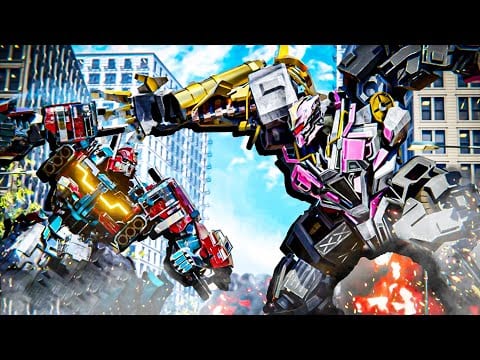
Steel Crossfire by Marmot’s Oven exposes customizable controls in settings inside the Roblox experience on Place 133197203959042. Defaults work for your first matches, but Season 1 TDM and Domination punish mis-taps — especially mid-T transform when a cap point is contested. This guide explains how settings customization works on PC, mobile, and console-style inputs, recommends learning official defaults first, then remapping for Bot, Vehicle, and Jet muscle memory.
Why settings matter
Transform combat is Steel Crossfire’s core loop. Valorians and Reavers share the same control skeleton across chassis from Pointrunner to Grand Beater. If transform, melee, or striker buttons sit where your thumbs cannot reach, you lose fights that aim alone would have won.
Common failure modes:
- T transform blocked by Roblox chat focus on PC.
- Transform button overlapping jump on mobile — accidental Jet when you wanted Bot cap.
- Striker RMB hold conflicting with aim on small mice.
- No remapped Q parry because settings were never opened.
Fix these in settings before spending Shards on Skirmish or Beater unlocks you cannot pilot.
Recommended workflow: defaults first, remap second
- Learn official defaults from PC controls or mobile controls for one full session.
- Identify friction — which action failed under pressure? Transform, parry, drift, or weapon swap?
- Change one binding at a time in Steel Crossfire settings — not five at once.
- Test in Team Deathmatch before Domination — Team Deathmatch guide is lower stakes for muscle memory.
- Cross-check mode-specific habits on Transform Modes so Vehicle drift and Jet ascend do not share the same finger by accident.
Defaults exist because community guides, Jet Combat, and Vehicle Combat pages reference them. Straying is fine; straying without recording your layout is not.
PC settings customization
PC players use keyboard and mouse inside the Roblox client. Steel Crossfire settings typically allow remapping in-experience actions such as transform, melee, parry, dash, and ability slots — exact options depend on the current build; recheck after Latest Updates.
Suggested PC defaults (official baseline)
| Action | Default key |
|---|---|
| Transform | T |
| Melee | E |
| Parry | Q |
| Dash | Ctrl |
| Reload | R |
| Switch weapons | F |
Full Bot / Vehicle / Jet tables live on PC controls.
PC remap tips
- Keep T on an index-finger key unless Roblox chat steals focus — some players move transform to a mouse side button after learning T timing.
- Do not put parry and melee on adjacent keys you fat-finger in Bot brawls.
- Vehicle Space drift and Jet Space ascend both use Space on PC — context differs by form; practice on Transform Modes before remapping Space globally.
- Lower Roblox camera sensitivity separately from in-game aim if RMB striker holds feel jittery.
Roblox client settings (shift-lock, graphics) also affect aim — tune those outside Steel Crossfire settings if strafing feels wrong.
Mobile and tablet settings
Mobile uses dual joysticks plus on-screen buttons. Steel Crossfire settings let you drag, resize, and opacity-tune HUD elements — critical for transform and parry reach.
Mobile customization checklist
- Enlarge Transform above the jump cluster.
- Separate Melee and Fire so mis-taps do not open chat-adjacent UI.
- Test Vehicle drift button reach on your dominant thumb arc.
- Confirm Jet ascend/descend buttons visible without hiding the minimap.
- Paste-redeem codes from Active Codes before long sessions — booster time wasted on bad HUD is expensive.
Deep mobile layout advice: mobile controls.
Console / gamepad-style inputs
Roblox console and gamepad players should mirror PC logic: transform on a shoulder or face button you can hit while moving, striker on a trigger hold, melee on a dedicated press — not shared with jump. Open Steel Crossfire settings each season; pass UI updates sometimes reset layouts.
Settings by transform mode
Settings are global, but your priorities shift per form:
Bot mode priorities
- Reliable Q parry and E melee.
- F weapon swap without looking down.
- Ctrl dash for disengage.
Bot settings support Melee & Parry drills and Loadouts weapon swaps.
Vehicle mode priorities
- Shift boost comfort for held presses.
- Space drift hold on a key or button you can sustain through corners.
- RMB striker without breaking steer.
Pair with Vehicle Combat guide rotation routes.
Jet mode priorities
- Space ascend and Ctrl descend on opposite sides of the hand when possible.
- Striker RMB reachable during altitude changes.
Pair with Jet Combat guide for when air beats ground.
Settings and economy
Better binds mean more round wins, which means more Shards — even before boosters. Redeem SEASON1, 20KLIKES, UPDATE, and 20KLIKES1, then fix settings before buying Centurion or Skirmish from Unlock Characters.
XP boosters from codes reward clean sessions — fewer deaths from mis-taps stretches booster value across Season 1 Battle Pass tiers.
After major patches
Marmot’s Oven sometimes adjusts HUD defaults or ability icons silently. After each update on Latest Updates:
- Open settings and confirm transform still maps correctly.
- Run one TDM match testing Bot → Vehicle → Jet chain.
- Revisit Controls hub if patch notes mention input changes.
Related pages
- PC Controls — Full keyboard table
- Mobile Controls — Touch layout guide
- Transform Modes — When to press transform
- Controls Hub — Practice checklist
- Getting Started — First-match flow
Customizable controls are Steel Crossfire’s hidden advantage — defaults teach the language, settings make it yours. Learn official binds, remap with purpose, then take the layout into Season 1 objectives.
Frequently Asked Questions
Quick answers to the most common Steel Crossfire questions.
Can you customize controls in Steel Crossfire?
Yes. Steel Crossfire exposes control customization in settings for PC, mobile, and gamepad-style layouts. Start from official defaults on PC or mobile controls pages, then remap one action at a time.
Should I change the default T transform key on PC?
Learn T first because most guides assume it. Remap only if chat focus or hand size causes repeated mid-fight failures — test changes in Team Deathmatch before Domination.
What mobile buttons should I resize first?
Transform, melee, and parry — in that order. Enlarge Transform away from jump to stop accidental form swaps during cap fights.
Do settings differ between Bot, Vehicle, and Jet?
Bindings are shared, but each mode uses different actions heavily — Space means drift in Vehicle and ascend in Jet on PC. Practice on Transform Modes before remapping shared keys.
Will settings reset after updates?
Sometimes HUD layouts shift after patches. Recheck settings after Latest Updates entries mention UI or control changes.
Where do I learn default binds before customizing?
Read PC controls or mobile controls, then open Steel Crossfire settings in the lobby. Pair with Transform Modes for when each action matters in combat.